Every image wobbles, but not every image wobbles well. The difference is mostly decided before you touch anything — by what is in the picture and how much of the frame it fills — and after that by how you drag. Here is what tends to work, and why.
Choose the Right Images
The single biggest factor in getting great wobble effects is image selection. Some images are born to wobble.
Round, Soft Objects Work Best
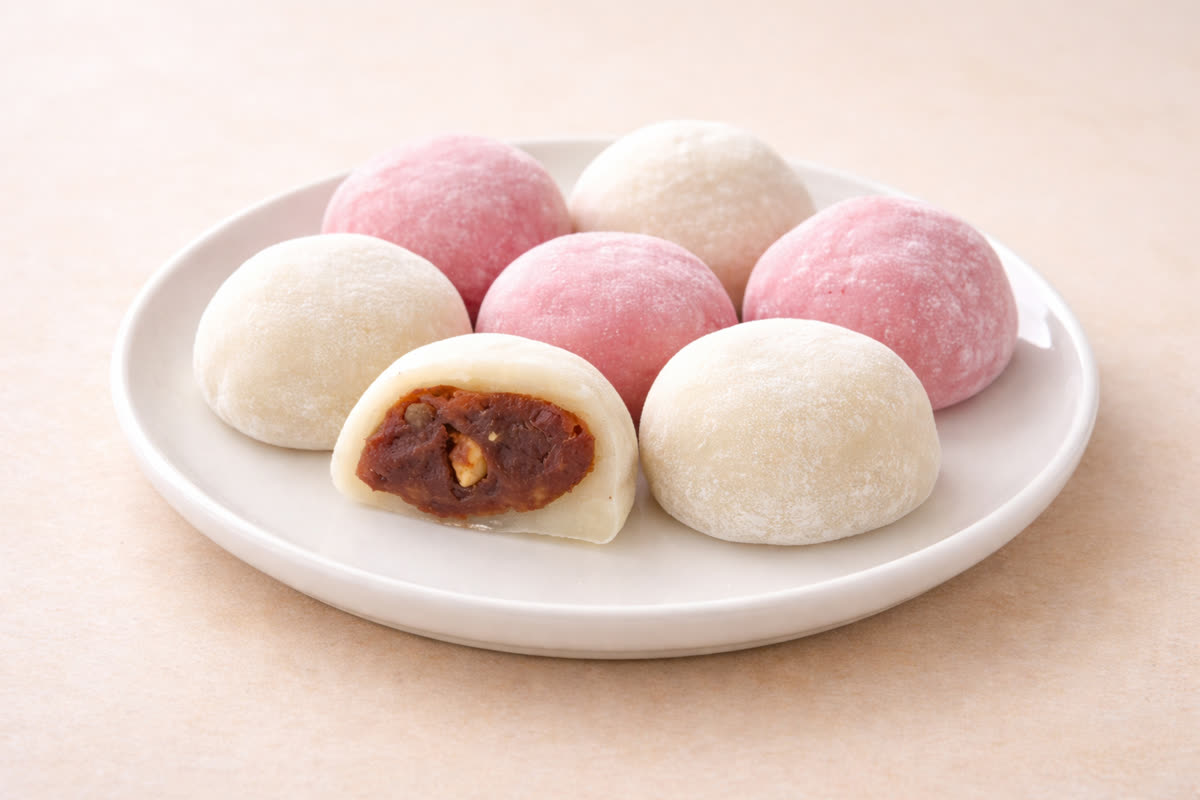
Images of round, plump, or soft-looking objects produce the most satisfying wobbles. Think about what looks good when it jiggles in real life — the same principle applies in WobblePic.
Top-tier wobble subjects include:
- Desserts and sweets: Pudding, jelly, mochi, cake, ice cream, and anything that looks soft and squishy. These are the gold standard for wobble content because viewers already associate these textures with jiggling motion.
- Animals with round features: Chubby cats, hamsters, seals, penguins, and baby animals in general. Their rounded proportions and soft appearance make the wobble feel natural and adorable.
- Plush toys and soft objects: Stuffed animals, rubber ducks, marshmallows, and balloons. Their real-world softness translates perfectly to on-screen wobble physics.
- Round fruits: Peaches, grapes, cherries, and watermelons. Their smooth, curved surfaces deform beautifully.
Images to Avoid (or Approach Differently)
Some images don’t wobble as naturally:
- Rigid, angular objects: Buildings, vehicles, and electronics have sharp edges and flat surfaces that look unnatural when deformed. The wobble effect works by simulating soft-body physics, so it clashes with objects that are obviously rigid.
- Very busy backgrounds: Images with complex, noisy backgrounds can make the wobble effect hard to see. The deformation is there, but it gets lost in the visual noise.
- Very small subjects: If the main subject occupies only a small portion of the image, the wobble will mostly affect empty background space. Crop tightly around your subject for the best effect.
That said, don’t rule out unexpected subjects entirely. Part of the fun of WobblePic is discovering that something wobbles in a surprisingly entertaining way. A wobbling skyscraper might not look realistic, but it can look hilarious.
Master Your Dragging Technique
How you interact with the image matters just as much as what image you choose. Different dragging techniques produce different wobble characteristics.
The Quick Flick
A short, fast drag followed by a quick release produces a sharp, snappy wobble. The image vibrates rapidly with high frequency. This works well for small objects and creates an energetic, playful feel.
To execute: Click on the image, drag a short distance quickly, and release abruptly. The key is speed over distance — you want to impart a burst of velocity, not a large displacement.
The Slow Pull and Release
A long, slow drag followed by a release produces a deep, dramatic wobble. The image swings back and forth with large amplitude and low frequency. This creates the satisfying “jelly on a plate” effect that WobblePic is known for.
To execute: Click on the image and drag slowly to your desired distance. Pause briefly at the peak of your drag, then release. The image will swing back dramatically and settle into a satisfying oscillation.
The Circular Swirl
Instead of dragging in a straight line, move your mouse in a circular motion while holding the click. This imparts rotational energy into the mesh, creating a swirling, churning wobble that looks different from linear pulls. It’s especially effective on round objects like faces or food items.
The Multi-Point Shake
Rapidly click and drag at different points across the image in quick succession. Each interaction adds energy to a different part of the mesh, creating a chaotic, all-over wobble. This is great for creating maximum jiggle in social media clips where you want high energy.
The Gentle Tap
A very small, quick drag produces a soft local swell around the point you grabbed, fading out with distance and settling almost immediately. This is elegant and understated — good for presentations, or anywhere you want a hint of motion rather than a performance.
Worth knowing what is happening here, because it shapes every technique above: the pull does not travel through the picture like a ripple through water. The grab displaces nearby points directly, weighted by how far they are from your cursor, and each one springs back on its own. So the size of the affected area is set by where you grab and how large the subject is — not by how hard or how long you pull.
Use AI Segmentation Strategically
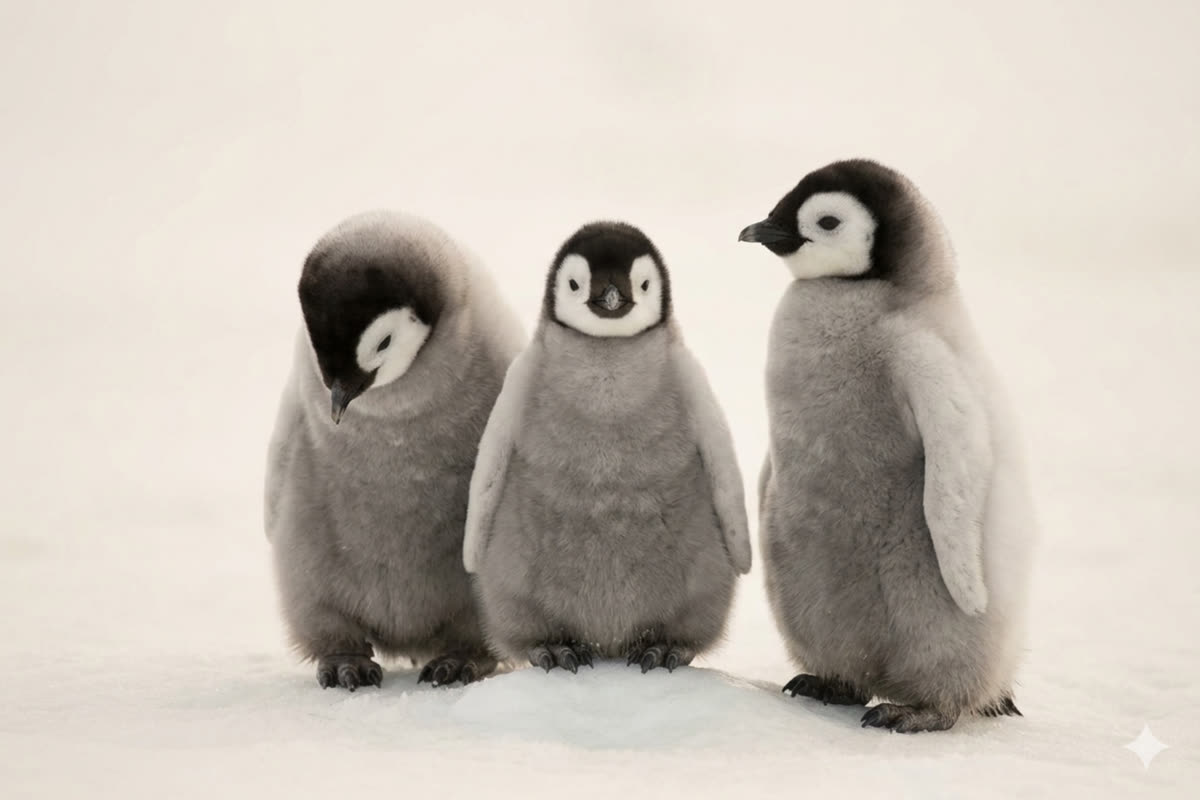
WobblePic’s AI segmentation feature (powered by SAM2) dramatically improves wobble quality when used well. Here are tips for getting the most from it.
Segment the Focal Point
Always segment the main subject of your image. A wobbling subject against a still background looks polished and intentional, while wobbling the entire image (background included) looks more chaotic. For social media content or presentations, segmented wobbles almost always look better.
Refine with Shift and Alt, not with plain clicks
If the selection grabs too much or too little, Shift + click/drag adds to it and Alt + click/drag removes from it. A plain click on the background does not subtract — it starts a new selection there, which is the most common way people lose a mask they had almost finished.
One thing to expect while refining: each correction is decoded on its own and merged into the mask you already had, rather than being fed back to the model as a hint. Adding a missed ear or trimming a stray corner works exactly as you would hope. Talking the model out of a boundary it drew confidently does not — if the very first mask is badly wrong, redrawing with a box prompt beats a sequence of corrections.
Build one selection out of several objects
The mask is a single selection, not a set of independent regions — so you cannot wobble two objects separately at the same time. What you can do is Shift-click several objects into one mask, so a whole group moves together against a fixed background. For the alternating effect, wobble one object, let it settle, then re-select the other.
Natural Boundaries Produce Better Masks
SAM2 performs best when objects have clear visual boundaries — distinct edges, contrasting colors, or different textures from their surroundings. A red apple on a white tablecloth will segment perfectly. A white cup on a white counter might need extra clicks to refine.
For best results, choose images where subjects stand out from their backgrounds. High contrast between subject and background leads to cleaner segmentation masks and therefore cleaner wobble boundaries.
Optimize Your Image Composition
A few composition principles can make your wobble content look significantly better.
Center Your Subject
Images where the main subject is roughly centered tend to produce the most visually pleasing wobbles. The wobble radiates symmetrically from the center, and when combined with segmentation, the effect looks balanced and satisfying.
Crop Tightly
Remove excess background by cropping your images before loading them into WobblePic (or use the built-in file explorer to navigate to well-composed images). A tightly cropped image means more of the wobble energy goes into the subject rather than wasted on empty space.
Resolution Helps, But Not the Way You’d Guess
Prefer the full-resolution photo over a thumbnail — but not because the physics gets finer. The deformation mesh is a fixed grid regardless of image size, so a 6000-pixel photo and a 600-pixel one deform with exactly the same smoothness. What the larger file buys you is texture: stretched pixels stay sharp instead of turning to mush, which is where a low-resolution source actually falls apart.
Good Lighting and Color
Well-lit images with vibrant colors wobble more impressively because the deformation is more visible. Dark, low-contrast images can wobble just as well technically, but the effect is harder to appreciate visually. If you’re creating content specifically for wobbling, choose bright, colorful source images.
Know Your Best Categories
Roughly ordered by how reliably a category produces a wobble worth keeping — this is our own impression from building the thing and feeding it a lot of photographs, not a survey:
- Desserts and soft food — The undisputed champion. Pudding, mochi, and jelly look like they were made to wobble.
- Cute animals — Round faces and soft bodies make for adorable wobbles.
- Cartoon and animated characters — Their exaggerated proportions and bright colors wobble beautifully.
- Plush toys and soft goods — Realistic wobble that matches expected real-world behavior.
- Fruits and vegetables — Smooth, rounded shapes deform naturally.
- People and portraits — Fun and funny, especially with segmented faces.
- Landscapes and nature — Subtle but interesting, especially water and foliage.
- Architecture and objects — Can be humorous due to the contrast between rigid subjects and soft wobble physics.
Putting It All Together
If you only take one recipe from all of this: a round, brightly lit subject that fills the frame, segmented from its background, pulled slowly and released. That combination is responsible for most of the clips that turn out well.
Everything else is variation, and the variations are worth trying — the surprising results usually come from a subject nobody would have picked. The tutorial covers the controls in order, and the gallery is there if you want to see which subjects survived the edit.