The phrase “image editor” covers an enormous range of software — from Photoshop to simple RAW processors to minimalist viewers. If you’re trying to pick the right tool for a specific task, it helps to understand how these tools are categorized and what each category is actually good at.
This guide walks through the main categories of image software you’re likely to encounter, what each is designed for, and how to choose between them. It’s organized by what the tool is built to do, not by price or popularity.
1. Raster (Pixel) Editors
What they are: Applications that work directly with pixels — painting, retouching, compositing, and manipulating individual dots on a grid.
The unit of work is the layer, and that is the real dividing line rather than any feature list. If your task decomposes into stacked pieces you can mask, blend and reorder — a blemish removed here, a sky replaced there, type over the top — you are in the right category.
Where people go wrong is using one as a photo library. A raster editor opens one file at a time and edits it destructively unless you are disciplined about layers and smart objects. Culling four hundred shots from a shoot in Photoshop is technically possible and organisationally miserable; that is what the next category exists for.
Common tools:
- Adobe Photoshop — The long-standing industry standard. Massive feature set, excellent file compatibility, steep learning curve, subscription pricing.
- GIMP — Free, open-source alternative. Similar core capabilities, different UI paradigm, active community.
- Affinity Photo — One-time purchase alternative, modern interface, professional feature set.
- Krita — Free, open-source, optimized for digital painting and illustration rather than photo editing.
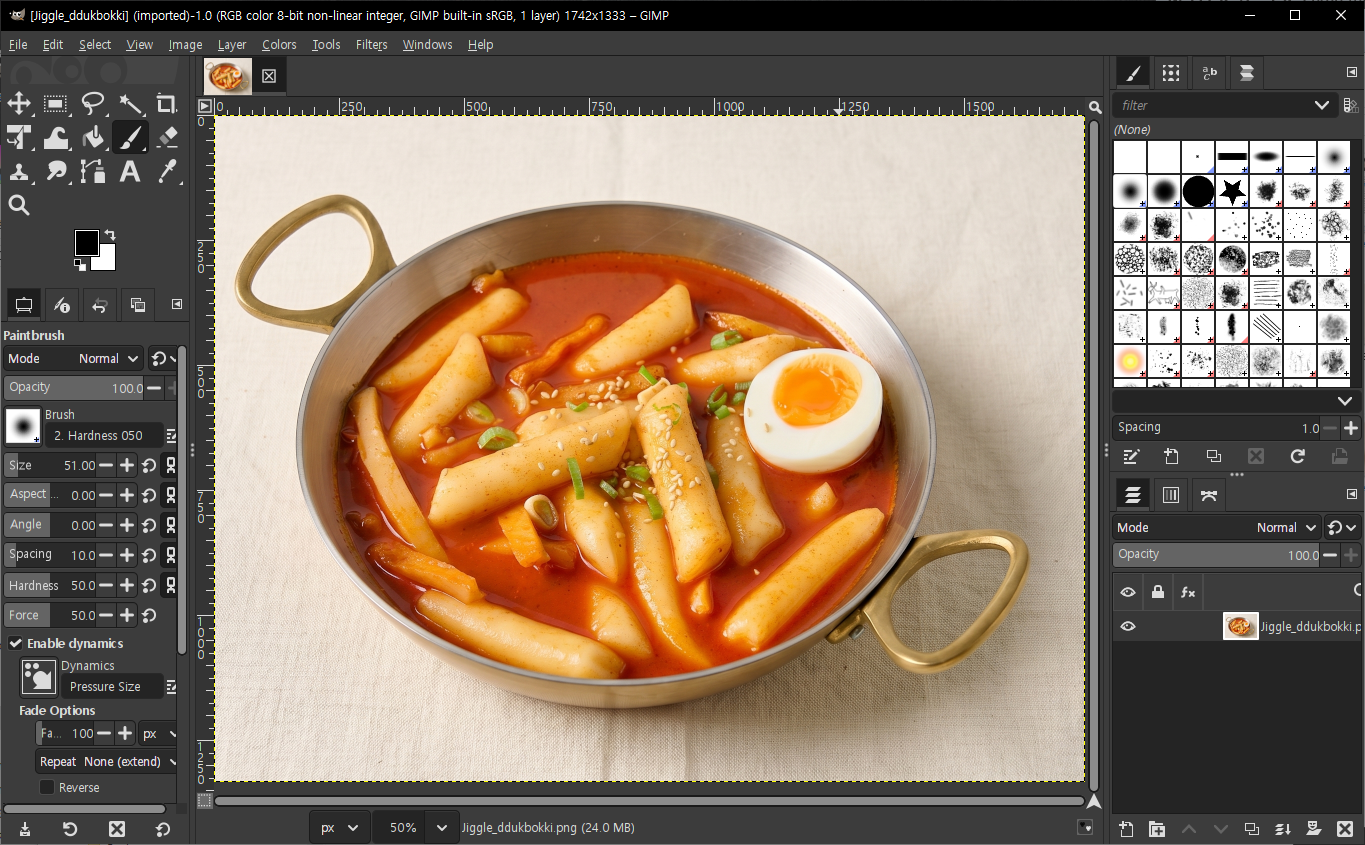 GIMP — the long-standing free and open-source raster editor.
2. Photo Management & RAW Editors
What they are: Tools built for photographers working with large libraries, especially RAW files. Editing is non-destructive: adjustments are stored as instructions, and the original file is never overwritten.
That single property is what makes the category feel different to use. Nothing is ever committed, so you can revisit a decision from two years ago, copy a look across four hundred frames, and undo it on three hundred of them. The edit is a recipe rather than a result.
The catch is the other side of the same coin: your work lives in a catalog, not in the files. Move or rename photos outside the app and you break the links; hand someone the folder and they get the untouched originals. Exporting is not an afterthought here, it is the step where the work becomes real — which surprises people arriving from a raster editor, where saving was the work.
Common tools:
- Adobe Lightroom — Industry standard for photographers, subscription-only. Comes in two variants: Classic, built around folders on your own disk, and the newer cloud-centric Lightroom.
- Capture One — Favored by many professionals for its color science and tethered shooting.
- Darktable — Free, open-source Lightroom alternative with a deep toolset.
- RawTherapee — Free, open-source, focused purely on RAW processing.
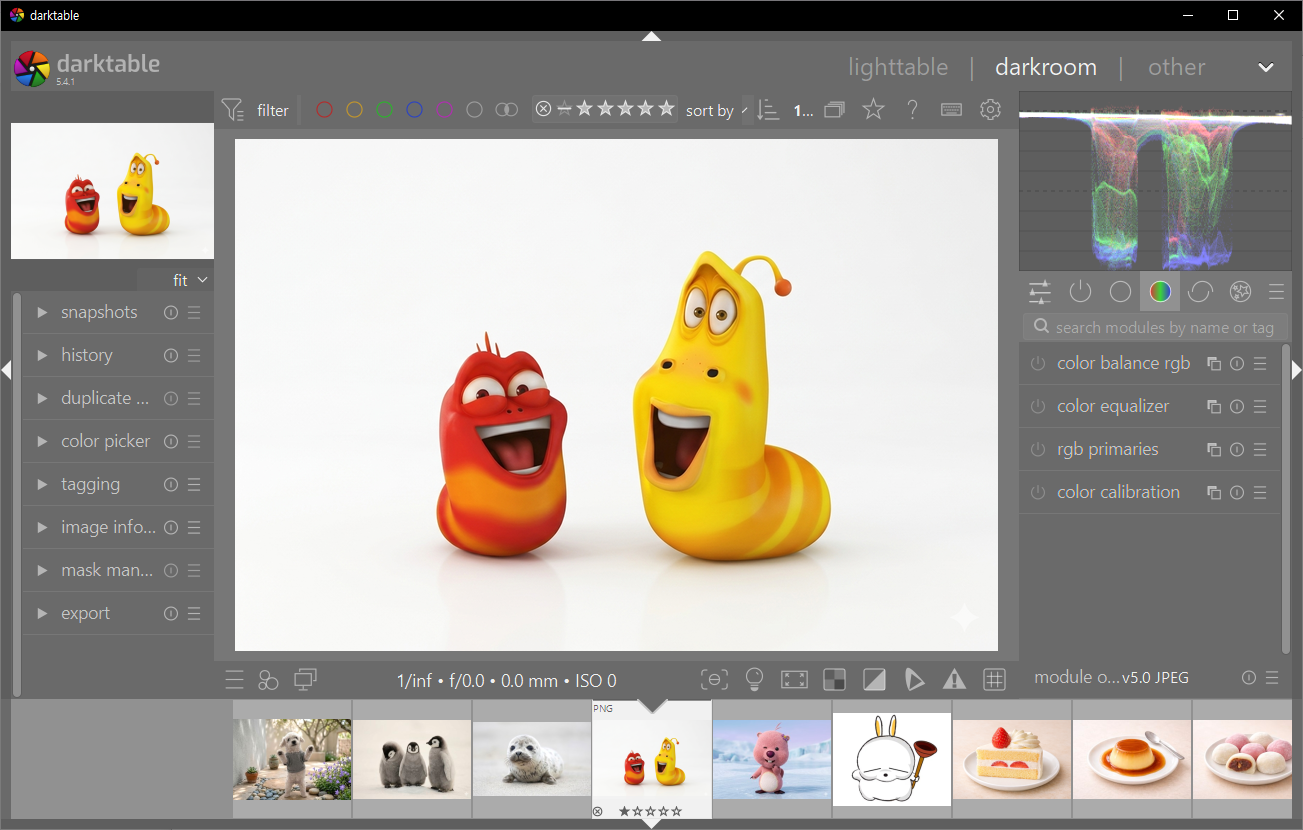 Darktable — free and open-source, a capable Lightroom alternative for RAW workflows.
3. Vector Editors
What they are: Apps that store shapes as mathematics rather than pixels, so the output is regenerated at whatever size you ask for and never softens.
Resolution independence is the headline, but the property that matters day to day is that everything stays editable. Text remains text, a curve remains a curve, and a logo you drew last year can have its wordmark changed this year without redrawing it. That is why the category owns branding work: those files get revised for years.
The failure mode is photographic content. Vector tools can trace a photo, and the result is nearly always larger, slower to render, and worse-looking than the JPEG it came from. If the source has continuous tone, you are in the wrong category.
Common tools:
- Adobe Illustrator — Industry standard, extensive brush and typography tools, subscription.
- Inkscape — Free, open-source, SVG-native.
- Affinity Designer — One-time purchase alternative with a dual vector/raster workspace.
- Figma — Browser-based, strong at UI/UX design and collaboration.
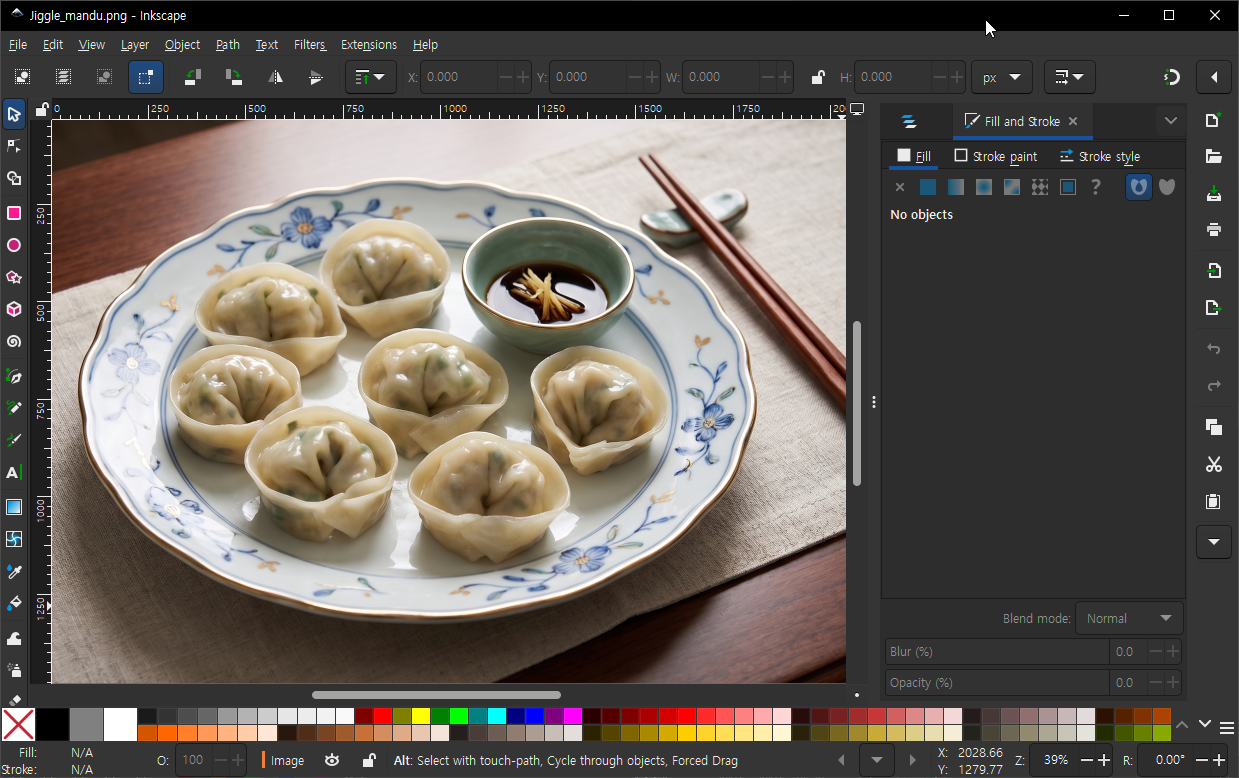 Inkscape — free and open-source, native SVG vector editor.
4. Image Viewers
What they are: Lightweight apps for browsing and looking at images rather than changing them.
This is the category people underrate, and the reason is that its benefits are small and constant rather than large and occasional. A viewer is the program you open dozens of times a day without deciding to; half a second of launch time and a keypress that goes to the next image compound into something you notice only when you switch to a slower one.
Two things worth checking before you settle: format coverage — modern cameras and phones produce RAW, HEIC and AVIF, and the system default often shrugs at all three — and how far the app goes past viewing. Most now include crop, rotate and basic adjustments, which is either convenient or an invitation to accidentally overwrite an original, depending on the app’s defaults.
Common tools:
- IrfanView — Classic Windows image viewer; very fast, supports many formats through plugins.
- XnView MP — Cross-platform, reads 500+ formats.
- ImageGlass — Open-source, modern UI, tabbed browsing.
- PicView — Open-source, focused on speed and a minimal interface.
- Apple Photos / Windows Photos — System-default viewers with basic organizing and editing features.
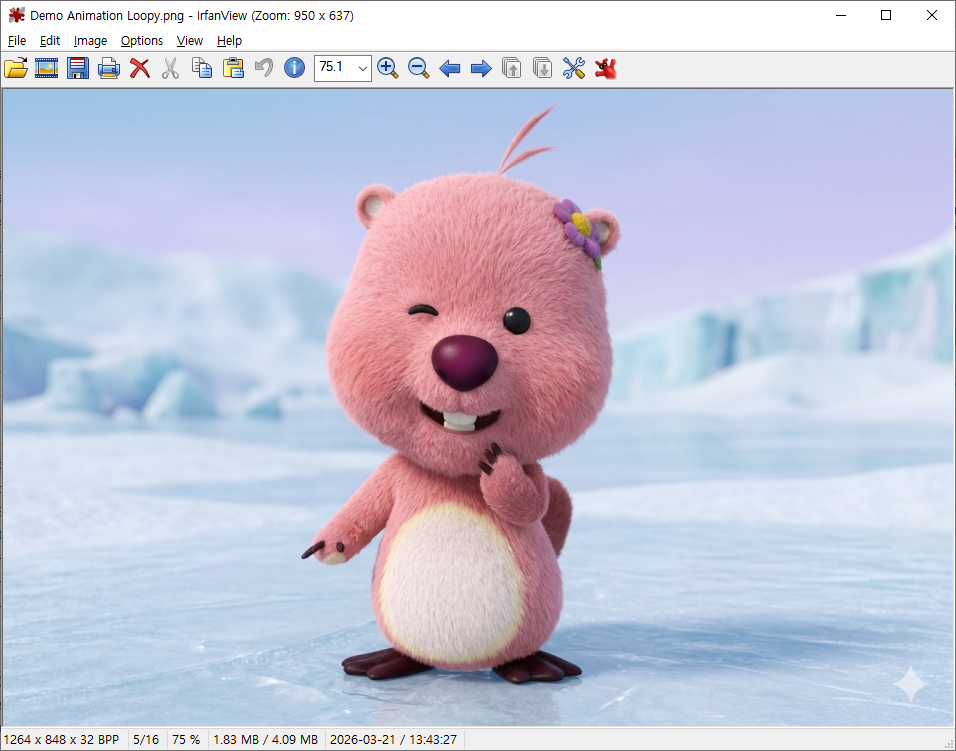 IrfanView — a fast, lightweight image viewer that has been a Windows staple since 1996.
For a deeper look at this category, see our image viewer comparison.
5. Interactive / Physics-Based Tools
This is the newest and smallest category: tools that neither edit nor merely display an image, but let you interact with it in real time — physics-based deformation, gesture-driven distortion, generative animation.
What separates it from the four above is that the output is not necessarily a file. In the other categories you open something, change it, and save it; here the point may be the interaction itself, with a recording as a by-product if you want one. That makes the category hard to place in a pipeline — it is not a stage between camera and export, it is somewhere off to the side.
Which also explains why these tools stay small and single-purpose. There is no reason for a physics toy to grow a layers panel, and the ones that try tend to be worse at both.
Examples:
- WobblePic — A free app that runs spring physics over any photograph, with AI segmentation so a subject can be pulled and bounced while the background stays put.
- Various web-based demos (liquid ink simulations, mesh warp tools, generative image toys) — these are often single-purpose experiments rather than full applications.
Tools in this category don’t replace traditional editors; they occupy a niche where the goal isn’t a pixel-perfect final image, but an enjoyable interaction or a short, shareable clip.
Which Category Do You Need?
A rough guide based on common goals:
| Your goal | Category to consider |
|---|---|
| Retouch a portrait | Raster editor (Photoshop, Affinity Photo, GIMP) |
| Process a wedding shoot | Photo management (Lightroom, Capture One, Darktable) |
| Design a logo or icon | Vector editor (Illustrator, Inkscape, Figma) |
| Quickly look through a folder of photos | Image viewer (IrfanView, XnView, ImageGlass) |
| Turn a still photo into a playful clip | Interactive/physics tool |
| Edit a printed graphic | Raster + vector combined, depending on the piece |
| Organize a large photo library | Photo management (Lightroom, Apple Photos) |
Most people end up with a small toolbox of 2–3 apps, not a single do-everything piece of software. A common combination is: a RAW editor for processing, a raster editor for detailed retouching, and a viewer for quick browsing.
Free vs. Paid
The free and open-source options — GIMP, Inkscape, Krita, Darktable — are genuinely professional tools, and for most work the honest answer is that you do not need to pay anything.
Where the commercial tools still earn their money is less about capability than about friction: smoother round-trips between applications, file formats other people can open, and a decade of tutorials answering the exact question you are stuck on. Whether that is worth a subscription depends on whether you are collaborating or working alone, more than on how advanced your work is.
The cost that nobody quotes is the one worth watching: the format you save in and the habits you build. Layered files rarely survive the trip between editors intact, and muscle memory takes months to rebuild. Switching later is more expensive than either price tag.
How to Choose
- Start from the task, not the tool. “Remove a blemish” → raster editor. “Cull 800 RAW files” → photo manager. Most bad tool choices are category errors, not brand errors.
- Try the free option in the right category first. It will teach you what you actually need from a paid one, if you end up needing one at all.
- Check format support before you commit — RAW from your specific camera, and HEIC or AVIF if your files come from a phone.
- Expect to end up with two or three. A RAW processor, something for detailed pixel work, and a fast viewer is the combination most people converge on, because the categories do genuinely different jobs.
Closing Thoughts
The boundaries do blur — Lightroom has local retouching, Photoshop opens RAW files, browsers run editors that would have been desktop software a decade ago. But blurred edges are not the same as a merged middle, and the centre of each category is still built around a different assumption: pixels and layers, catalogs and recipes, shapes and equations, speed and coverage, or interaction itself.
Pick the assumption that matches your work and the tool choice mostly makes itself.